
Turtle Graphics
Create Turtle Graphics images and animations easily with this online tool.
What is this online tool?
This tool lets you easily create Turtle Graphics images and animations online.
Turtle Graphics is a way of drawing pictures and shapes programmatically using simple commands. The concept is based on controlling a "turtle", an on-screen cursor that moves around the canvas. The turtle can move forward, backward, turn left, turn right, and draw lines as it moves, creating graphics step by step.
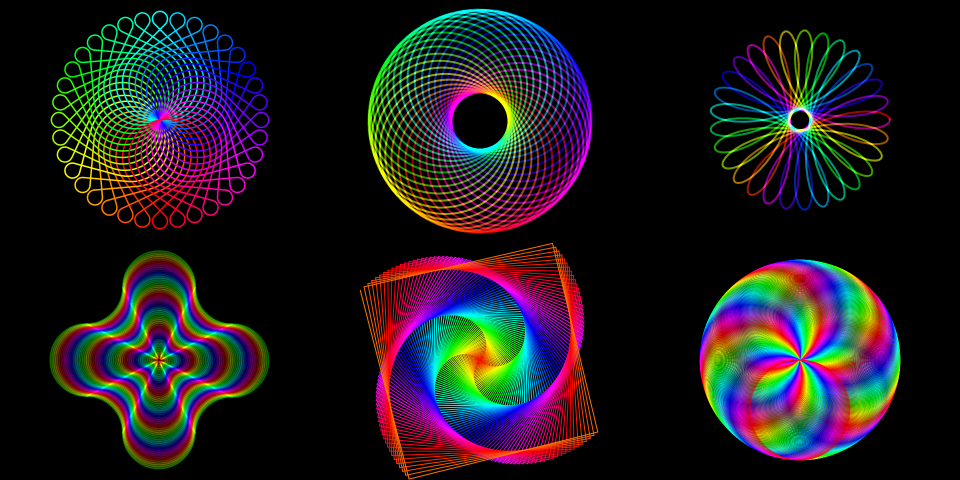
By combining movements and turns, you can draw polygons, spirals, mandalas, spirographs, fractals, patterns, or even complex scenes. You can easily create beautiful images with only a few simple commands, like "move forward", "turn left" and "hue rotate".
Turtle Graphics is popular in education because it gives visual feedback for programming instructions, making it easier for beginners to learn coding, geometry, and logic.
This tool lets you create Turtle Graphics online using block coding, a visual programming method. You can also use Javascript programming language.
Learn by looking the examples of Turtle Graphics below, and reading the documentation.
Examples
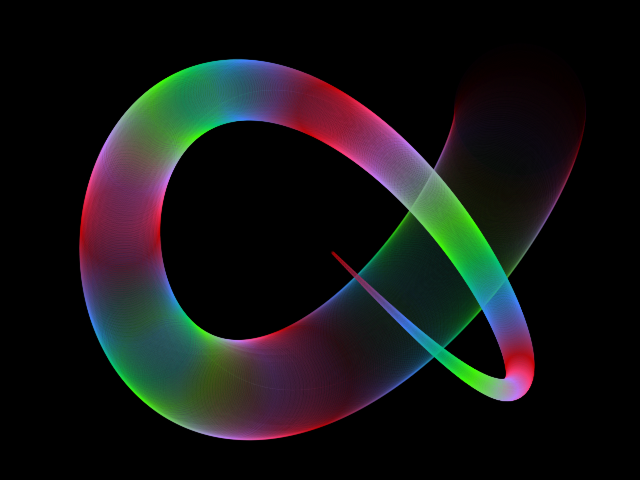
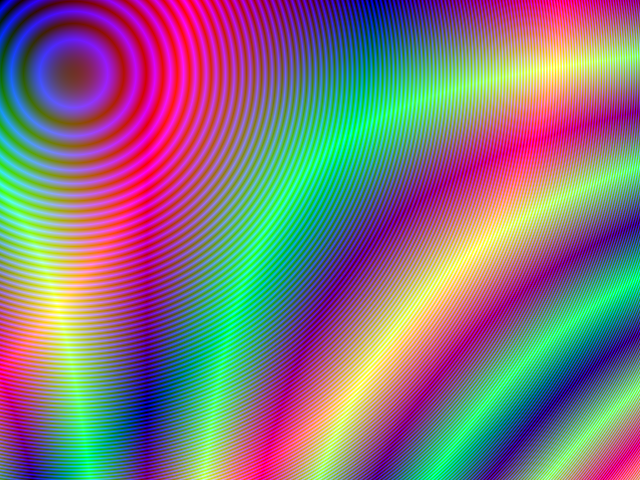
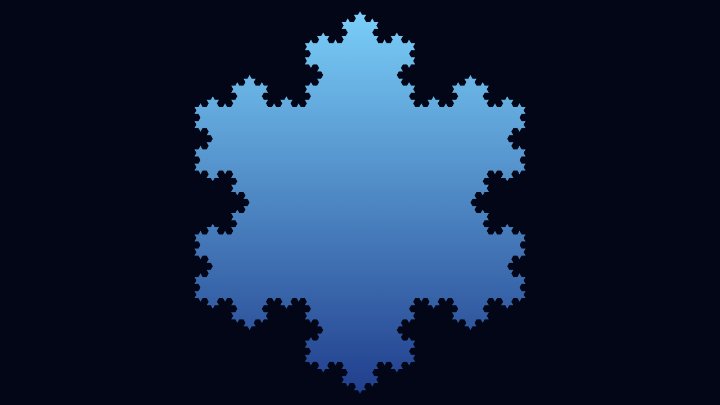
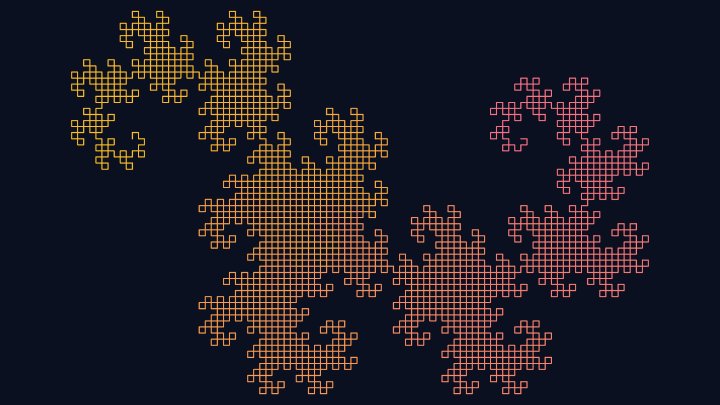
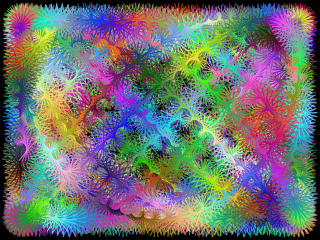
Below you can find some examples of Turtle Graphics created with this online tool.
Click on any image to start the animation and see the corresponding commands and other parameters.
Documentation
Turtle initial state
Turtle initial position
| Field | Description |
|---|---|
| x | The initial x coordinate of the turtle, in pixels. |
| y | The initial y coordinate of the turtle, in pixels. |
Turtle initial angle
| Field | Description |
|---|---|
| angle | The turtle's initial angle, in degrees. Angles increase clockwise: 0° points to the right, 90° points downward. |
Pen color
You can use RGB or HSL to set the initial color of the turtle pen.
| Field | Description |
|---|---|
| Color representation | Can be RGB (red, green, blue) or HSL (hue, saturation, lightness). |
For RGB, you can choose red, green and blue.
| Field | Description |
|---|---|
| red | Must be a number between 0 and 255. |
| green | Must be a number between 0 and 255. |
| blue | Must be a number between 0 and 255. |
For HSL, you can choose hue, saturation and lightness.
| Field | Description |
|---|---|
| hue | Must be a number between 0 and 360, where 0 is red, 120 is green and 240 is blue. |
| saturation | Must be a number between 0 and 100. |
| lightness | Must be a number between 0 and 100. The default is 50. If lightness is 0, the color will be black. If lightness is 100, the color will be white. |
Pen width
| Field | Description |
|---|---|
| pen width | The width of the pen, in pixels. |
Pen state
| Field | Description |
|---|---|
| pen state | Determines whether the turtle draws while moving. When the pen is down, the turtle leaves a trail on the canvas. When the pen is up, the turtle moves without drawing. |
Shadow
You can configure the pen so that the lines drawn will have shadows.
| Field | Description |
|---|---|
| shadow blur | The amount of blur applied to shadows. If value is 0, there will be no blur. |
| shadow offset x | The distance that shadows will be offset horizontally. |
| shadow offset y | The distance that shadows will be offset vertically. |
Other attributes
| Field | Description | ||||||||
|---|---|---|---|---|---|---|---|---|---|
| blend mode | The blend mode sets the type of compositing operation to apply when drawing. It sets how a new line will be drawn over the drawings that are already drawn on the canvas. For more information check these links: Blend Modes (Wikipedia), globalCompositeOperation (MDN Web Docs) and globalCompositeOperation (w3schools). | ||||||||
| opacity | The transparency of the lines that the turtle draws. Must be number between 0.0 (fully transparent) and 1.0 (fully opaque). | ||||||||
| line cap | The line cap determines the shape used to draw the end points of lines. Can be "butt", "round" or "square".
|
Turtle current state
When the animation starts, the turtle is set to the initial conditions, as configured in the section "Turtle initial state" (see above). After that, the commands will be executed, and the turtle will move, turn, change pen state, and so on. In this section (Turtle current state), you can see the values changing in real time during the animation, and also edit that values if you want.
Any changes that you made in this section will be applied only to the current animation. When you start or restart the animation, all the values of the turtle current state are replaced by the values configured in the turtle initial state.
For the turtle current state, the attributes that you can view and edit are the same as the turtle initial state (see the section above to learn more).
Turtle image
You can show or hide the turtle. You can also choose the turtle size.
| Field | Description |
|---|---|
| Draw turtle | If this option is enabled, a turtle image will be drawn in the canvas. If not, the turtle will be hidden. |
| Turtle size | The turtle size, in pixels. Only applicable if the "draw turtle" option is enabled. |
Turtle animation
| Field | Description |
|---|---|
| Animate turtle | Controls whether the turtle's movement is animated. When enabled, the turtle gradually moves and rotates. When disabled, movements happen instantly, allowing the drawing to render faster. |
| Turtle animation speed | Controls the turtle animation speed, if the animate turtle option is enabled. Must be a number between 0.0 and 1.0, where 0.0 means the animation will be paused, and 1.0 means the turtle movements happen instantly. |
Commands
The turtle can execute one or more commands. The commands are executed in sequence. After the last command, if the option "repeat" is enabled, it will go back to the first command and run the commands again, until you pause or stop the animation.
There are different types of commands. Check the table below to learn what each command type does.
| Command types | Description |
|---|---|
| Move forward | The turtle will move forward the amount of pixels specified. If the pen state is down, the turtle will draw a line while moving. |
| Move backward | The turtle will move backward the amount of pixels specified. If the pen state is down, the turtle will draw a line while moving. |
| Turn left | The turtle will rotate counterclockwise, the amount of degrees specified. |
| Turn right | The turtle will rotate clockwise, the amount of degrees specified. |
| Set pen color | Set the color of the pen. This will define the color of the lines that the turtle will draw while moving. |
| Hue rotate | Hue rotate the color of the pen. The amount is defined in degrees. The pen color representation must be HSL for this command to take effect. |
| Set variable | Change the value of a variable. The variable must be previously created in the variables section. |
| Pen up | Set the pen state to up. When the pen state is up, the turtle will not draw lines when moving. |
| Pen down | Set the pen state to down. When the pen state is down, the turtle will draw lines when moving. |
| Draw circle | Draw a circle with given radius (or an arc, if the extent is less than 360 degrees). The extent, in degrees, determines which part of the circle is drawn. It can be drawn clockwise or counterclockwise. To draw a full circle, extent must be 360. |
| Go to position | Move the turtle to the given position (x and y coordinates). If the pen is down, a line will be drawn. The turtle angle will not be changed. |
Repeat the commands execution
| Field | Description |
|---|---|
| Repeat | When enabled, the turtle continuously executes all commands in a loop. After the last command, it returns to the first and repeats until the animation is paused or stopped. If this option is disabled, the commands will be execute only once. |
Variables
| Field | Description |
|---|---|
| Name | The variable name. |
| Type | The variable type. At the moment, the only type available is "number". |
| Initial value | The initial value for the variable. The variable is set to its initial value when you start or restart the animation, or when you click on the button "Reset turtle". |
| Current value | The current value for the variable. The value of the variables can be changed using the command "Set variable". |
Canvas size
| Field | Description |
|---|---|
| Resolution | The canvas width and height, in pixels. You can select an option from the list of commom display resolutions, or use "custom" to choose any width and height. |
| Width | The width of the animation canvas, in pixels. |
| Height | The height of the animation canvas, in pixels. |
Background
| Field | Description |
|---|---|
| Transparent background | If this option is checked, the animation will have transparent background. |
| Background color | The background color, in hexadecimal value. For example, use #000000 for a black background. |
Generate and download video
Instead of only watching the animations online, you can also record and download videos. The videos will be generated using webm extension.
You are free to share the generated videos on YouTube, TikTok or any other social media or website. Attribution is not required but appreciated.
| Field | Description |
|---|---|
| Framerate | The amount of frames per second that you want the video to have. |
| Automatically stop after... | If enabled, the video recording will stop automatically after the configured time (in seconds) or after the configured amount of frames. |
Related tools