
Procedural Animation Generator
Easily create procedural animations from basic shapes and trigonometric functions with this powerful online tool.
Procedural animation parameters
Elapsed time: 0 ms
What is Procedural Animation Generator?
This is a free online tool to create animations procedurally from basic shapes and mathematical formulas.
This tool is similar to the procedural image generator, but instead of generating static images, you can generate animations.
How it works
The animations are generated by drawing the selected shape multiple times each frame. For each animation frame, the shape is drawn in different positions, colors, radius, rotations and transparencies, based on the math equations that you can customize. The equations can have two variables: i, for the number of the current iteration, and t, for the time elapsed in the animation, in milliseconds.
| Variable | Description |
|---|---|
| i | The current iteration number. |
| t | Elapsed time, in milliseconds. |
To better understand this tool, we recommend checking the procedural image generator first, on which this tool is based.
How to use this online tool
- Choose the canvas size (width and height).
- Choose the shape and the draw type (stroke or fill).
- Choose the number of times that the shape will be drawn at each animation frame.
- Choose the math equations for the shape position (x and y), color (r, g, b), alpha (transparency) and other attributes, depending on the selected shape.
- Configure coordinates offset and zoom, or just use the default values.
- Choose the background color, or select "transparent background".
- The animation will be automatically played in the canvas whenever you change any configuration attribute. You can keep changing attributes to experiment, until you get the animation you want.
- You can start, pause, resume or stop the animation at any time by clicking the control buttons below the canvas.
- Click the button "download animation frame" to download the current animation frame in PNG format.
Examples
Below are some examples of animations generated with this online tool.
Click on any image below to play the animation and use it's parameters as a template to start creating your procedural animations by editing those parameters.
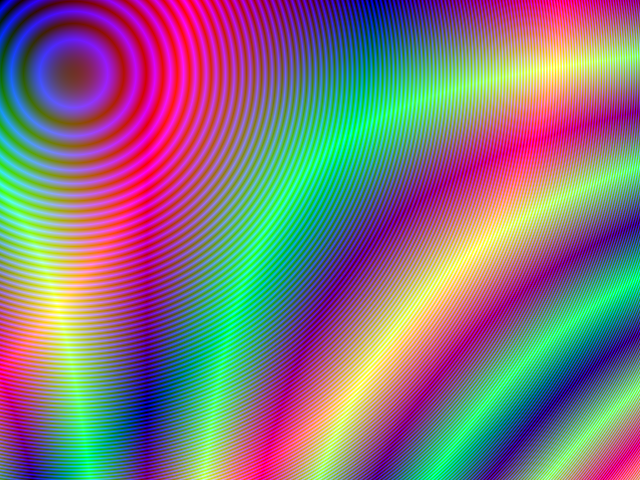
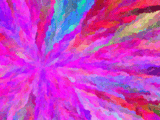
Example 1
Click on the image below to start playing the animation.
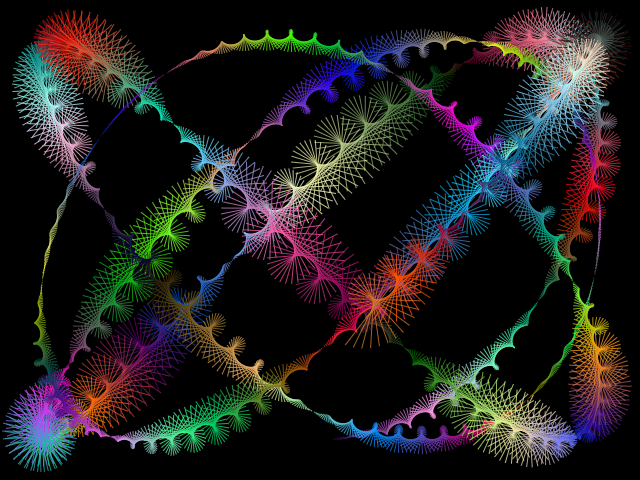
This animation was generated from 4000 lines drawn at each animation frame, with different positions, colors, angles and line lengths.
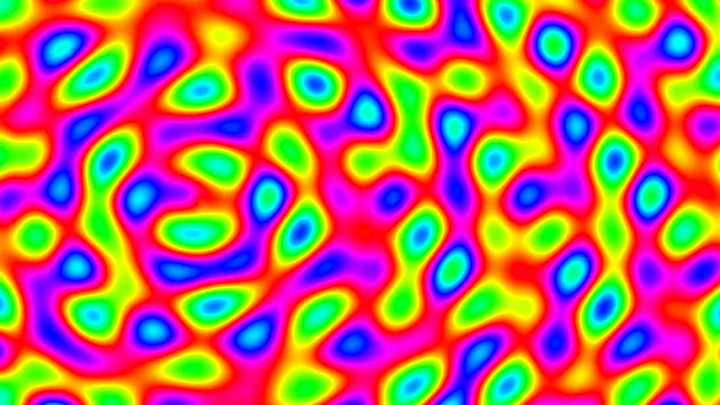
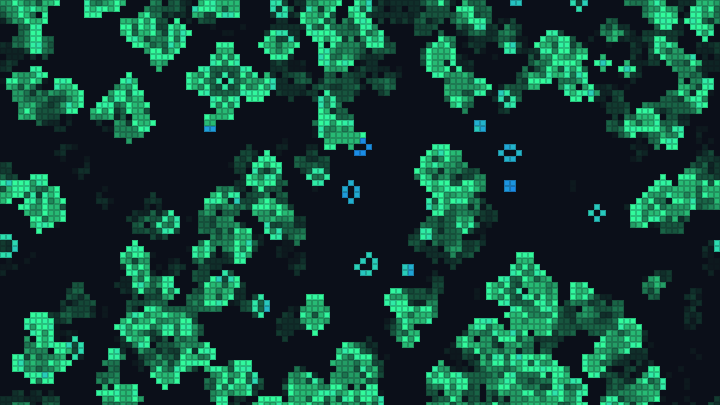
Example 2
Click on the image below to start playing the animation.
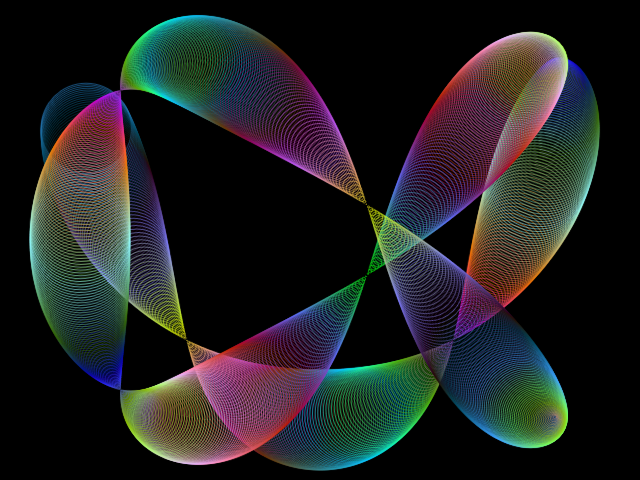
This animation was generated from 1000 circles, drawn at different positions and with different radius and colors.
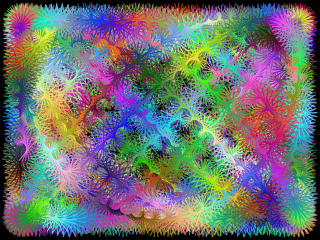
Example 3
Click on the image below to start playing the animation.
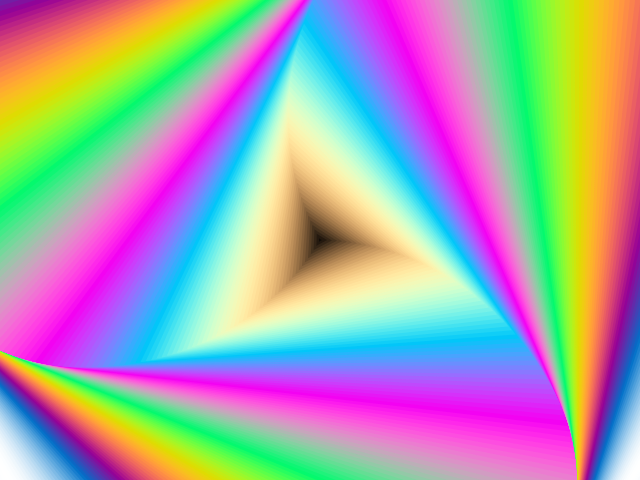
This animation was generated from 200 triangles, drawn with different colors, sizes and angles.
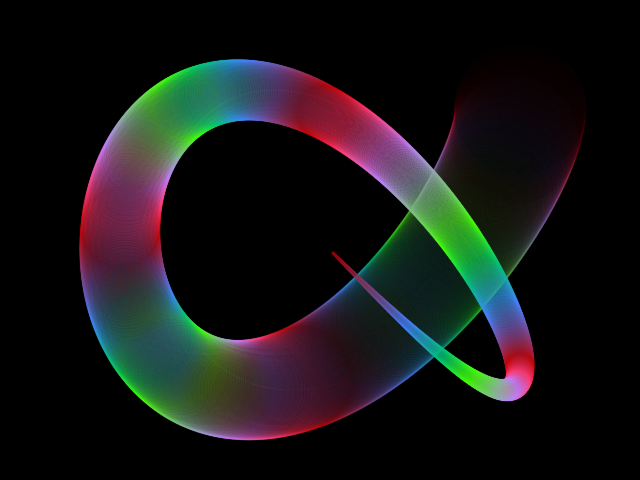
Example 4
Click on the image below to start playing the animation.
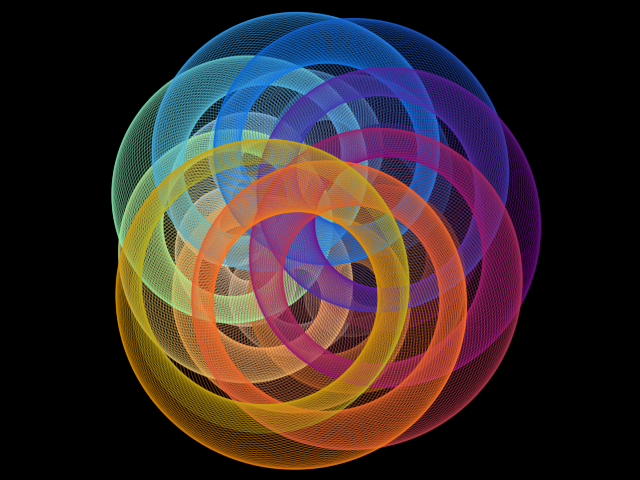
This animation was generated from up to 1500 circles, drawn at different positions and with different radius and colors.
Configuration parameters
Canvas size
| Field | Description |
|---|---|
| Width | The width of the animation canvas, in pixels. |
| Height | The height of the animation canvas, in pixels. |
Shape to draw
| Field | Description |
|---|---|
| Shape | The shape that will be used to draw each animation frame. It can be a circle, ellipse, triangle, square, rectangle, polygon, star or line. |
| Draw type | Can be stroke or fill. For all shapes, except line. |
| Number of sides | Number of sides of the polygon. Only for polygon shape. |
| Star points | Number of star points. Only for star shape. |
Iterations
The parameters in this section can be static numbers. These parameters can also contain the variable "t" for the time elapsed, in milliseconds. For example, t * 0.001.
You can also use Javascript math functions, like "Math.sin()" or "Math.cos()", or the equivalent short versions, like "sin()" or "cos()". See the "Useful math functions" section below for the full list of math functions.
| Field | Description |
|---|---|
| Number of (shapes) to draw | The number of times the choosen shape will be drawn in the canvas to build the final image of each animation frame. |
| Initial value for "i" variable | In the math equations (next section), you can use the "i" variable for the current iteration number. Here you can configure the initial value for this variable. The default value is 0. |
| Increment for "i" variable | For every step in the iteration, the variable "i" is incremented by the amount configured here. The default value is 1. |
Math equations
In any equation, you can use the variable "i", for the current iteration in the loop. For example, i * 0.01.
You can also use the variable "t", for the time elapsed, in milliseconds. For example, t * 0.001.
You can also use Javascript math functions, like "Math.sin()", "Math.cos()", "Math.sqrt() and "Math.random()". For example, Math.sin(i * 0.01) * 100.
Some Javascript math functions also have an equivalent short version. For example, instead of using "Math.sin()" or "Math.cos()" you can use just "sin()" or "cos()".
Any parameter below can also be a static number instead of an equation, if you don't want the parameter to vary.
| Field | Shapes | Description |
|---|---|---|
| x | all shapes | The horizontal position that the shape will be drawn in the canvas, in pixels. |
| y | all shapes | The vertical position that the shape will be drawn in the canvas, in pixels. |
| radius | circle, triangle, square, polygon and star | The radius of the circle. It's also used for other shapes. |
| ellipse radius X | ellipse | The ellipse horizontal radius, in pixels. |
| ellipse radius Y | ellipse | The ellipse vertical radius, in pixels. |
| rectangle width | rectangle | The width of the rectangle, in pixels. |
| rectangle height | rectangle | The height of the rectangle, in pixels. |
| star inset | star | The inset defines if the star is more or less pointy and sharp. The default value is 2.5. |
| Red | all shapes | The equation for the red color channel. Must evaluate to a number between 0 and 255. If the equation evaluates to a value outside this range, the value will be automatically adjusted to be in that range, based on the selected configuration (bounce, clamp or remainder). |
| Green | all shapes | The equation for the green color channel. Must evaluate to a number between 0 and 255. If the equation evaluates to a value outside this range, the value will be automatically adjusted to be in that range, based on the selected configuration (bounce, clamp or remainder). |
| Blue | all shapes | The equation for the blue color channel. Must evaluate to a number between 0 and 255. If the equation evaluates to a value outside this range, the value will be automatically adjusted to be in that range, based on the selected configuration (bounce, clamp or remainder). |
| line width | all shapes | The width of the stroke when drawing the shapes. |
| line length | line | The length of the line. |
| rotation | all shapes except circle | The shape angle, in radians. |
| alpha | all shapes | The shape transparency. Must evaluate to a number between 0.0 (fully transparent) and 1.0 (fully opaque). |
Blend mode
| Field | Description |
|---|---|
| Blend mode | The blend mode sets the type of compositing operation to apply when drawing shapes. It sets how a new shape will be drawn over the drawings that are already drawn on the canvas. For more information check these links: Blend Modes (Wikipedia), globalCompositeOperation (MDN Web Docs) and globalCompositeOperation (w3schools). |
Additional configuration
| Field | Description | ||||||||
|---|---|---|---|---|---|---|---|---|---|
| Behaviour when RGB value is outside range [0-255] | The equations for R (red), G (green) and B (blue) must evaluate to numbers in the range between 0 and 255, for any iteration in the loop. For any iteration, if an equation evaluates to a value outside this range, the value will be automatically adjusted to be in that range, based on the selected configuration (bounce, clamp or remainder). This parameter determines how the values will be adjusted to belong to the range, when needed.
| ||||||||
| Behaviour when radius is negative | Some shapes have the "radius" parameter. This parameter must be a positive number or zero. For any iteration, of any animation frame, if the equation of the radius parameter evaluates to a negative number, it will be converted to a positive number or zero, based on the selected configuration (use absolute value or set value to zero).
|
Coordinates
| Field | Description |
|---|---|
| Origin | The coordinates origin (0,0). Can be "top left" or "center". |
| Offset x | The "x" coordinate offset, in pixels. It determines the horizontal position of the "camera". Adjusting this offset lets you easily shift the view or "move" the camera without changing the math equations "x" and "y". |
| Offset y | The "y" coordinate offset, in pixels. It determines the vertical position of the "camera". Adjusting this offset lets you easily shift the view or "move" the camera without changing the math equations "x" and "y". |
Zoom
| Field | Description |
|---|---|
| Zoom | Changing this parameter allows you to easily "zoom in" or "zoom out" without changing the math equations "x" and "y". |
Background
| Field | Description |
|---|---|
| Transparent background | If this option is checked, the animation will be have transparent background. |
| Background color | The background color, in hexadecimal value. For example, use #000000 for a black background. |
Animation control
| Button | Description |
|---|---|
| Start | Start playing the animation. |
| Restart | Restart the animation. |
| Pause | Pause the animation. |
| Resume | Resume the animation, if the animation is paused. |
| Stop | Stop the animation. |
Useful math functions
Below are some examples of useful Javascript mathematical functions that you can use in the equations.
| Math function (Javascript) | Alias (short version) | Description | Usage example |
|---|---|---|---|
| Math.sin() | sin() | Returns the sine of a number in radians. | sin(i/20) * 255 |
| Math.cos() | cos() | Returns the cosine of a number in radians. | cos(0.01 * i) * 255 |
| Math.atan() | atan() | Inverse tangent, in radians. | atan(0.01 * i) * 255 |
| Math.atan2() | atan2() | Returns the angle in the plane (in radians) between the positive x-axis and the ray from (0, 0) to the point (x, y), for Math.atan2(y, x). | atan2(i, 100) * 200 |
| Math.pow() | pow() | Returns the value of a base raised to a power. | pow(i, 3) |
| Math.random() | random() | Returns a pseudo-random number that's greater than or equal to 0 and less than 1, with approximately uniform distribution over that range. | random() * 255 |
| Math.sqrt() | sqrt() | Returns the square root of a number. | sqrt(i) * 100 |
| Math.tan() | tan() | Returns the tangent of a number in radians. | tan(i*0.01) * 255 |
| Math.abs() | abs() | Returns the absolute value of a number. | abs(-100) |
For a full list of Javascript mathematical functions, check Javascript documentation here and here.
Math constants
Below are some Javascript mathematical constants that you can use in the equations.
| Math constant | Description | Usage example |
|---|---|---|
| Math.PI | The ratio of the circumference of a circle to its diameter (approximately 3.14159). | 2 * Math.PI |
| Math.E | Euler's number, the base of natural logarithm and exponential function (approximately 2.71828). | Math.E * i |
Related tools