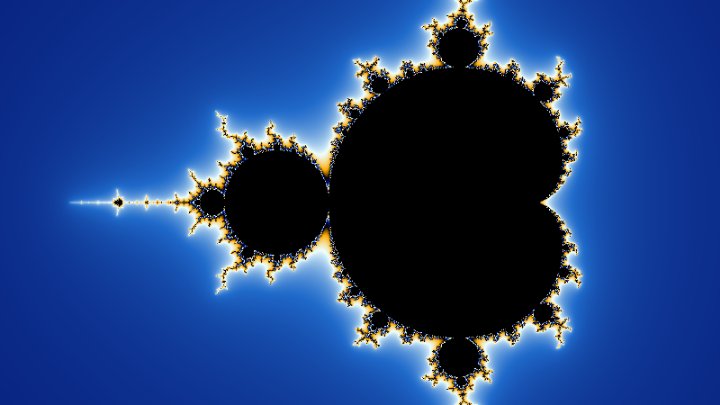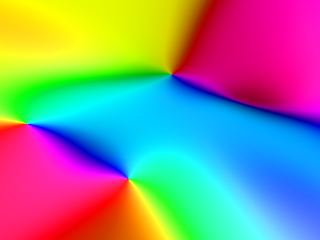

Create images using math equations
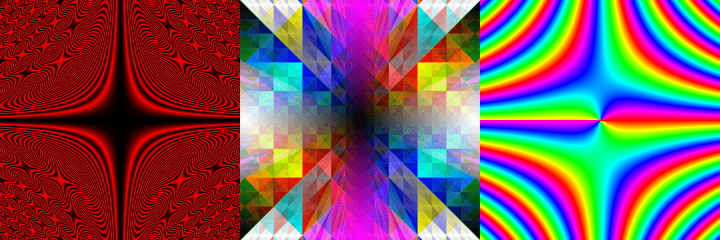
This is a free online tool to generate images from mathematical formulas.
You can use a math equation for each RGB color channel (red, green and blue), or a math equation for each HSL component (hue, saturation and lightness).
The equations will be used to determine the color of each pixel in the image, based on "x" and "y" position of the pixel in the image.
The equations can contain the variables "x", "y", and math functions, like "sin()", "cos()", "sqrt() and "random()".
Want the images to move? Try Create animations using math equations, which adds the time "t" as a variable and downloads the result as a GIF or a video.
To learn more, read the documentation below and the list of math functions. Also, look at the examples below and learn how they were created.
How to use this online tool
- Choose the image width and height.
- Choose a color representation (RGB or HSL).
- If using RGB, type the math equations for the "red", "green" and "blue" color channels.
- If using HSL, type the math equations for the "hue", "saturation" and "lightness".
- Choose the desired behaviour when the result of an equation is a value outside the accepted range. You can choose "bounce" (recommended), "clamp" or "remainder".
- Optionally choose the coordinates offset (x and y) and zoom.
- Click "download image" to download the image in PNG format.
Options
Generated image:
Examples
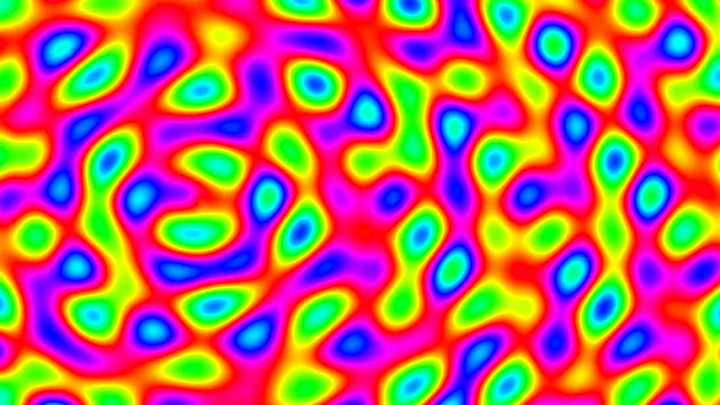
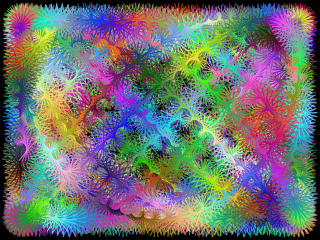
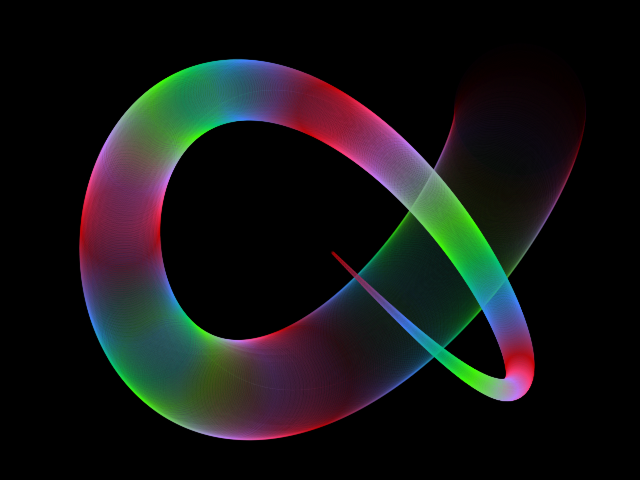
Below are some examples of images generated with this online tool.
Click on any image below to edit the equations and parameters.
Documentation
Image size
| Field | Description |
|---|---|
| Image width | The width of the image, in pixels. |
| Image height | The height of the image, in pixels. |
Math equations
Before choosing the math equations, you must select the type of color representation to use to create the image (RGB or HSL).
| Field | Description |
|---|---|
| Color representation | Can be RGB (red, green, blue) or HSL (hue, saturation, lightness). |
If you choose RGB, you can choose the math equations for red, green and blue.
| Field | Description |
|---|---|
| R | The equation for the red color channel. |
| G | The equation for the green color channel. |
| B | The equation for the blue color channel. |
If you choose HSL, you can choose the math equations for hue, saturation and lightness.
| Field | Description |
|---|---|
| H | The equation for hue. |
| S | The equation for saturation. |
| L | The equation for lightness. |
In any equation, you can use variables "x" and "y" (pixel coordinates).
You can also use Javascript math functions, like "sin()", "cos()", "sqrt() and "random()".
Additional configuration
| Field | Description | ||||||||
|---|---|---|---|---|---|---|---|---|---|
| Behaviour when value is outside RGB range [0-255] | The equations for R (red), G (green) and B (blue) must evaluate to numbers in the range between 0 and 255, for any pixel in the image. For any pixel in the image, if an equation evaluates to a value outside this range, the value will be automatically adjusted to be in that range, based on the selected configuration (bounce, clamp or remainder). This parameter determines how the values will be adjusted to belong to the range, when needed.
|
| Field | Description | ||||||||
|---|---|---|---|---|---|---|---|---|---|
| Behaviour when saturation value is outside range [0-100] | The equations for S (saturation) must evaluate to numbers in the range between 0 and 100, for any pixel in the image. For any pixel in the image, if an equation evaluates to a value outside this range, the value will be automatically adjusted to be in that range, based on the selected configuration (bounce, clamp or remainder). This parameter determines how the values will be adjusted to belong to the range, when needed.
|
| Field | Description | ||||||||
|---|---|---|---|---|---|---|---|---|---|
| Behaviour when lightness value is outside range [0-100] | The equations for L (lightness) must evaluate to numbers in the range between 0 and 100, for any pixel in the image. For any pixel in the image, if an equation evaluates to a value outside this range, the value will be automatically adjusted to be in that range, based on the selected configuration (bounce, clamp or remainder). This parameter determines how the values will be adjusted to belong to the range, when needed.
|
Coordinates offset
| Field | Description |
|---|---|
| Offset x | The "x" coordinate offset, in pixels. It determines the horizontal position of the "camera". Adjusting this offset lets you easily shift the view or "move" the camera without changing the math equations. |
| Offset y | The "y" coordinate offset, in pixels. It determines the vertical position of the "camera". Adjusting this offset lets you easily shift the view or "move" the camera without changing the math equations. |
Zoom
| Field | Description |
|---|---|
| Zoom | The zoom. Changing this parameter allows you to easily "zoom in" or "zoom out" without changing the math equations. |
Useful math functions
Below are some examples of useful Javascript mathematical functions that you can use in the equations.
You can use the Javascript functions like this:
Math.sin(x + y)
Or the short version, without the "Math.", like this:
sin(x + y)
| Math function | Equivalent Javascript math function | Description | Usage example |
|---|---|---|---|
| sin() | Math.sin() | Returns the sine of a number in radians. | sin(x/20) * 255 |
| cos() | Math.cos() | Returns the cosine of a number in radians. | cos(0.01 * y) * 255 |
| atan() | Math.atan() | Inverse tangent, in radians. | atan(0.01 * x) * 255 |
| atan2() | Math.atan2() | Returns the angle in the plane (in radians) between the positive x-axis and the ray from (0, 0) to the point (x, y), for Math.atan2(y, x). | atan2(y, x) * 255 |
| pow() | Math.pow() | Returns the value of a base raised to a power. | pow(x, y) |
| random() | Math.random() | Returns a pseudo-random number that's greater than or equal to 0 and less than 1, with approximately uniform distribution over that range. | random() * 255 |
| sqrt() | Math.sqrt() | Returns the square root of a number. | sqrt(x) * 100 |
| tan() | Math.tan() | Returns the tangent of a number in radians. | tan(x*0.01) * 255 |
| min() | Math.min() | Returns the smallest of the numbers provided as input parameters. | min(x, y) |
| max() | Math.max() | Returns the largest of the numbers provided as input parameters. | max(x, y) |
For a full list of Javascript mathematical functions, check Javascript documentation here and here.
Related tools