
How to generate button images online
In this tutorial you will learn how to generate button images with the Button Generator online tool.
Button generator is a free online tool that allows you to generate button images. You can use it to generate buttons for websites, games, mobile apps, advertisements, CTA (Call to action) buttons or anything you want.
Simple buttons with solid color
When you open the tool, it shows some default parameters. As default, it has a gradient style and these options enabled: "text outline", "button border", "shadow" and "emboss".
If you want to generate a simple button with solid color, select the "solid color" in the "style" field at the "Button" section. Then, uncheck all the following options: "text outline", "button border", "shadow" and "emboss". This will make the button have a simple and basic style.
Then, choose a color for the button. For example, you can choose hex code #1E90FF. Type the hexadecimal color code in the field "button color".
The result will be a simple and basic blue button.
Look images below for the result with different button colors.


In the image below you can view all the parameters used.
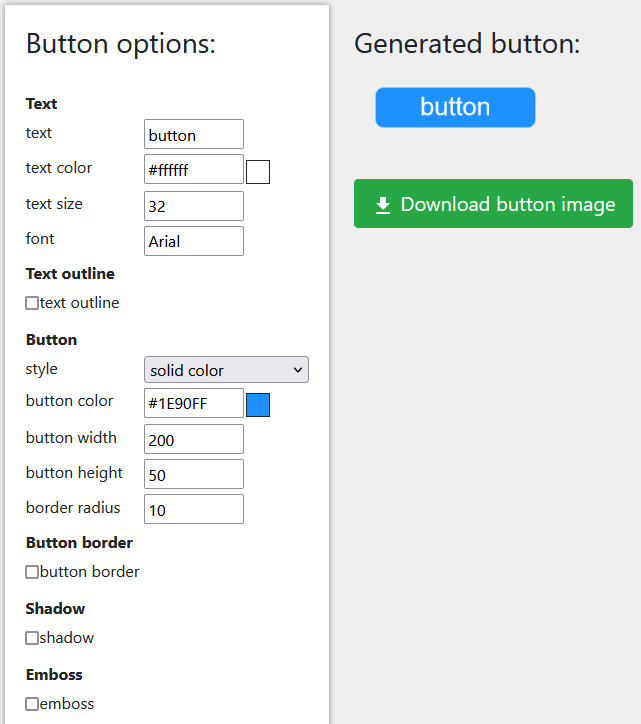
| Options section | Field | Value |
|---|---|---|
| Button | style | solid color |
| Button | button color | #1E90FF for the blue button, #dc3545 for the red button and #198754 for the green button. |
| Text outline | text outline | false |
| Button border | button border | false |
| Shadow | shadow | false |
| Emboss | emboss | false |
Buttons with color gradient
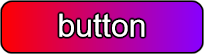
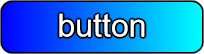
To generate buttons with color gradient, change the field "style" to "horizontal gradient" or "vertical gradient".
Then choose the colors you want for the gradient. If you selected "horizontal gradient", choose the "left color" and "right color". If you selected "vertical gradient", choose the "top color" and "bottom color".
For the buttons with color gradient, I also enabled the "text outline" and "button border" options.
Vertical gradient button examples:


Horizontal gradient button examples:
Buttons with shadow
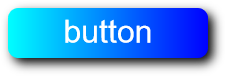
To generate buttons with shadow, keep the shadow checkbox selected in the shadow section. This option is enabled by default.
You can configure the shadow blur, shadow color, shadow offset x and shadow offset y.
Below are some examples.
Shadow blur set to 0.

Shadow blur set to 10.

Shadow blur set to 10, with horizontal color gradient.
Buttons with emboss
To generate buttons with emboss, keep the emboss checkbox selected in the emboss section. This option is enabled by default.
You can configure emboss radius and emboss intensity.
Below are some examples.
Button with emboss (radius = 5 and intensity = 2).

Button with emboss and shadow.
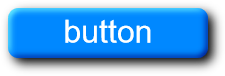
Button with emboss, shadow and horizontal color gradient.
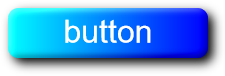
Border radius and round buttons
You can increase border radius to make the button border more rounded.
Below are some examples where the border radius is 25 (half of the button height).


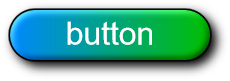
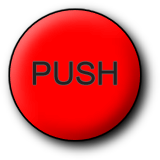
If you want to create a round button, set an equal value for width and height and then set border radius to half of this value. For example, set width and height to 200 and border radius to 100.
Learn more
Check the configuration parameters for a full documentation of all the parameters used in Button Generator.