
Button generator
What is button generator?
Button generator is a free online tool to generate button images with different styles and download as PNG.
You can easily customize the button style by changing text font, size, color, outline, button border, gradient background colors, shadow, emboss and more.
You can use it to generate buttons for websites, games, apps, advertisements and so on.
How to generate button images?
You can generate button images by following these steps:
- Enter the button text in the text field.
- Choose text font, color and size.
- Configure additional properties, like text outline, button style (solid color or gradient), button size, border radius, shadow and emboss.
- Click "download button image" to download the image as PNG.
You can also start by clicking on one of the button examples below and then edit the parameters.
Examples
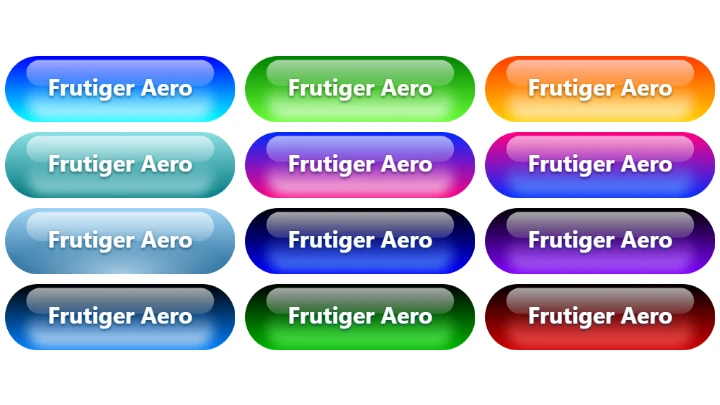
Below you can find some examples of buttons generated with this online tool.
Click on any example to use it as a template to create your button.
Learn more
For more information, check the tutorial and the documentation of parameters.
Button options
Generated button
Button configuration parameters
Below are the parameters you can configure when creating a button. They are divided in sections.
Text
| Field | Description |
|---|---|
| text | The button text. Multi-line text is alowed. |
| text color | The color of the button text, in hexadecimal format. You can also select a color from the color picker. To open the color picker, click the square next to the text field. |
| text size | The size of the button text. |
| font | The font of the button text. |
Text outline
| Field | Description |
|---|---|
| text outline | If this option is checked, the button text will have an outline. |
| text outline size | The size of the text outline, in pixels. |
| text outline color | The color of the outline text, in hexadecimal format. |
Button
| Field | Description |
|---|---|
| style | Can be "solid color", "horizontal gradient" or "vertical gradient". |
| button color | The color of the button, in hexadecimal format. This field is only enabled if the style of the button is "solid color". |
| top color | The top color of the button, in hexadecimal format. This field is only enabled if the style of the button is "vertical gradient". |
| bottom color | The bottom color of the button, in hexadecimal format. This field is only enabled if the style of the button is "vertical gradient". |
| left color | The left color of the button, in hexadecimal format. This field is only enabled if the style of the button is "horizontal gradient". |
| right color | The right color of the button, in hexadecimal format. This field is only enabled if the style of the button is "horizontal gradient". |
| button width | The width of the button, in pixels. |
| button height | The height of the button, in pixels. |
| border radius | The radius of the button border, in pixels. Can be used to create round buttons. If set to 0, the button will be square. |
Button border
| Field | Description |
|---|---|
| button border | If this option is checked, the button text will have an border. |
| border size | The size of the button border, in pixels. |
| border color | The color of the button border. |
Shadow
| Field | Description |
|---|---|
| shadow | If this option is checked, the button text will have a shadow. |
| shadow blur | The blur radius of the button shadow, in pixels. The higher the number, the more blurred the shadow will be. |
| shadow color | The color of the button shadow. |
| shadow offset x | The horizontal offset of the button shadow, in pixels. |
| shadow offset y | The vertical offset of the button shadow, in pixels. |
Emboss
| Field | Description |
|---|---|
| emboss | If this option is checked, the button will have an emboss effect. |
| emboss radius | The radius of the emboss, in pixels. |
| emboss intensity | The intensity of the emboss effect. |
Related tools