How to create 3D texts online
In this tutorial you will learn how to create 3D texts online with the 3D Text Generator tool.
We will generate different types of 3D text, with different styles.
Example 1 - 3D text with perspective camera and directional light
When you open the 3D Text Generator, it will have the default parameters. The default camera type is "perspective camera" and the default light type is "directional light". So, if you want to generate a 3D text with perspective camera and directional light, you just need to keep this parameters with the default values.
Type the text that you want for the 3D text, choose a font, and select a color. You will see a preview of the 3D text in the canvas on the right side of the screen.
Below you can see the generated image for the 3D text with perspective camera and directional light.

Example 2 - 3D text with perspective camera and point light
Below you can see the same 3D text from above, but with point light.

To do that, just go to the "lights" section and change the light type from "Directional light" to "Point light". Then ajust the light position (x, y and z coordinates).
Example 3 - Isometric 3D text
With the orthographic camera you can create isometric 3D texts.
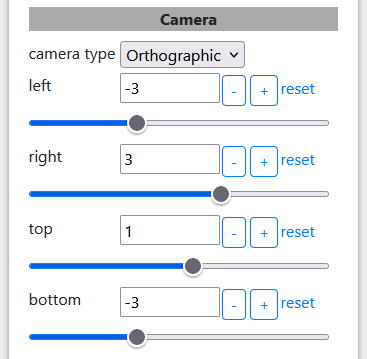
Set camera type to "orthographic". Then set the fields "left", "right", "top" and "bottom" as shown in image below.
You will see an image similar to the one below. It has orthographic camera and directional light.

Now let's change the camera to point light.

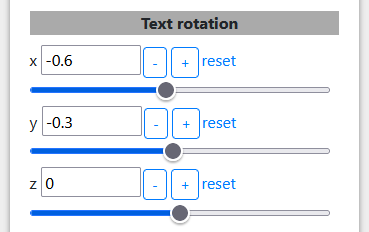
And now let's apply some rotation to the text. Use the parameters shown in the image below. Use -0,6 to X-axis rotation, -0.3 to Y-axis rotation and keep 0 for Z-axis rotation.
The image below show the final result for our isometric 3D text.

Example 4 - 3D text with shadow projected on a plane
In this example, we will add another object, to receive the shadow of the 3D text.
By default, the 3D text will cast shadows on other objects.
Let's add an object to be the "floor" where the 3D text will be. To add the object, go to the "Objects" section and click on the button "add object". Keep the object type as "box" (the default type). Set object position y to -0.7, so that the text and the object are touching each other. Then, set both width and depth to 300.
Set camera position y to 1. In the section "Camera rotation", click on the button "Look at text (center)".
In the "Lights" section, change the light type to "Point light".
Now, set background color to black.
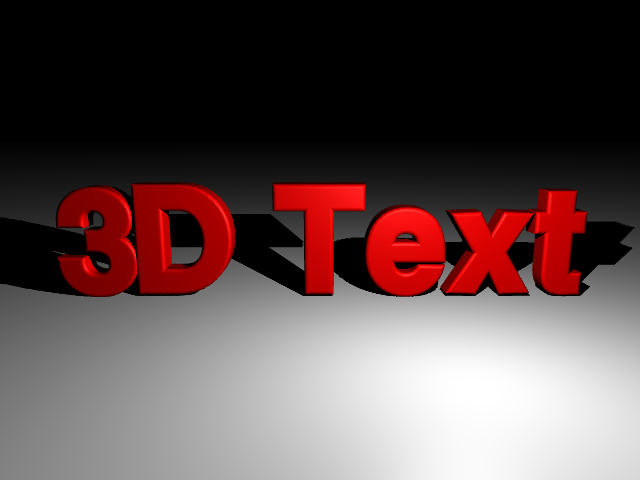
The result will be like the image below.
Example 5 - Multi-line 3D text with rotation
For the text, you can also use line break to have multi-line text.
In this example, we will create a multi-line 3D text with a rotation at X-axis.
In the text field, type text "3D Text Generator Online", using 2 line breaks.
Change text size to 0.8, so that the text fit the canvas.
In the "Text rotation" section, set rotation x to -0.8.
In the "Lights" section, change the light type to "Point light".
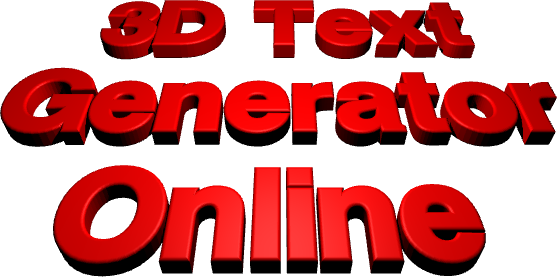
The image below shows the final result for the multi-line 3D text.